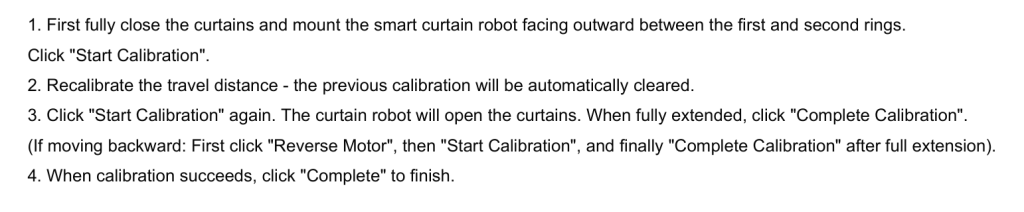
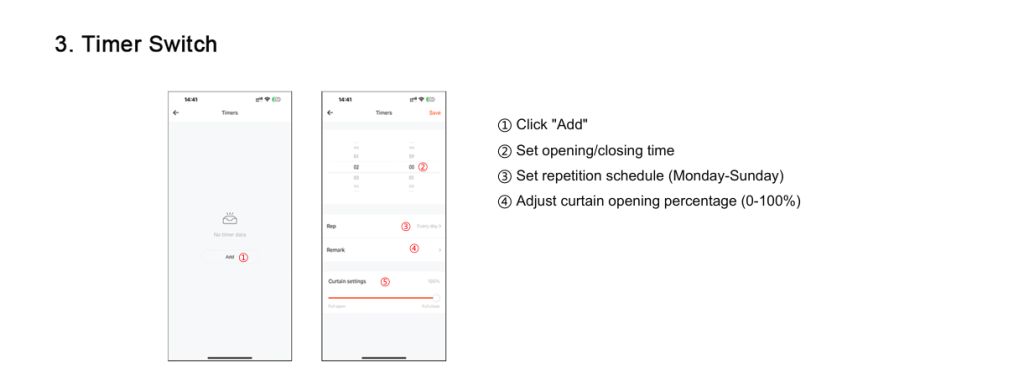
Manage and control all your smart devices conveniently in one app.
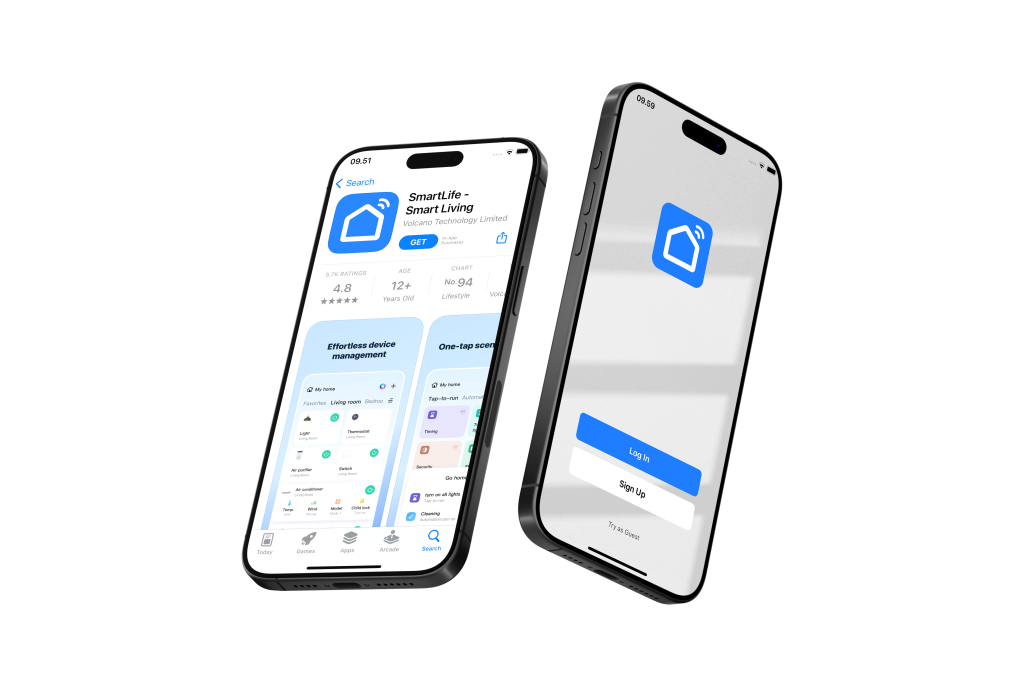
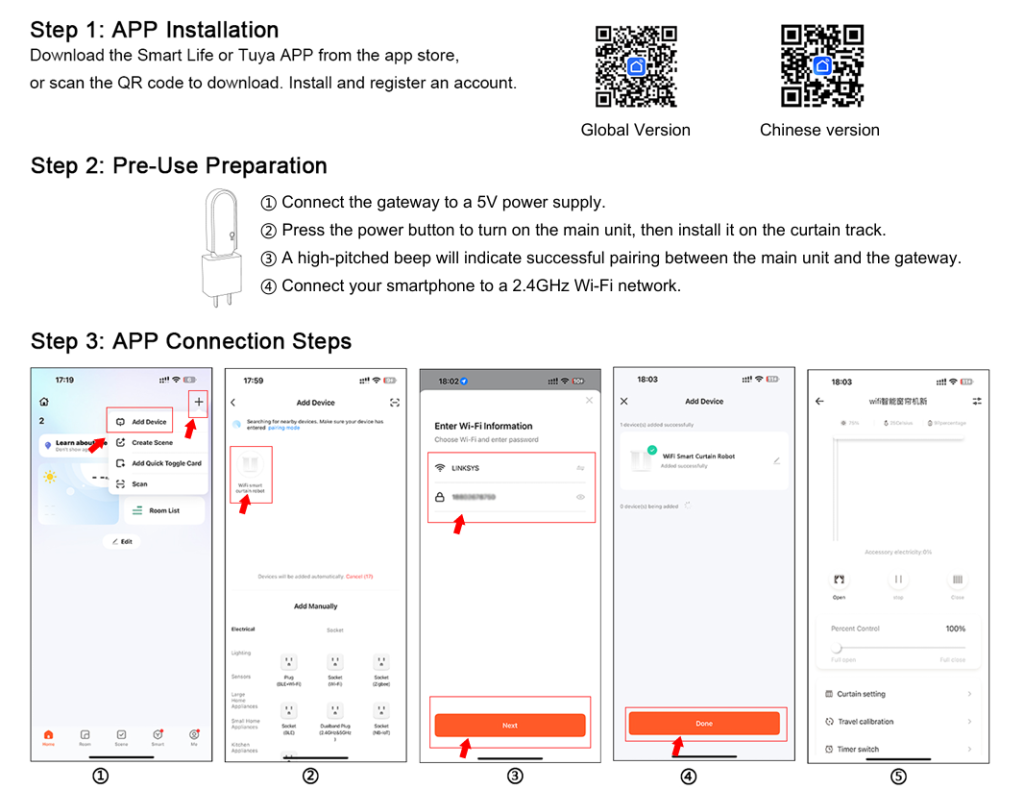
Download Smartlife App:
Visit the Google Play Store (for Android devices) or Apple App Store (for iOS devices)
Search for “Smartlife” and click the “Download” or “Get” button
Register Your Account:
Open the Smartlife app and follow the registration prompts
Create a new account to get started
Grant Necessary Permissions:
To ensure seamless connectivity, please grant the Smartlife app access to:
Notifications
Location
Wi-Fi
Bluetooth
Important Wi-Fi Configuration Note: Most smart home products, including this device, are compatible with Wi-Fi 2.4GHz networks only.
If you have a combined router: Please contact your telecom provider for assistance on how to disable Wi-Fi 5GHz to ensure proper connectivity.
Pre-Connection Checklist:
Before adding your device, please ensure:
✓ Bluetooth is enabled on your mobile phone ✓ Wi-Fi is enabled on your mobile phone ✓ Your mobile phone is connected to your home Wi-Fi network (2.4GHz)
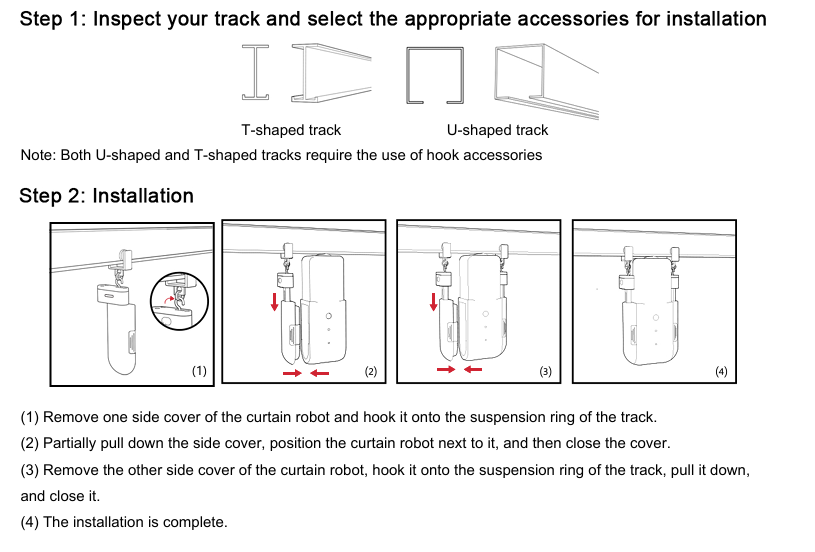
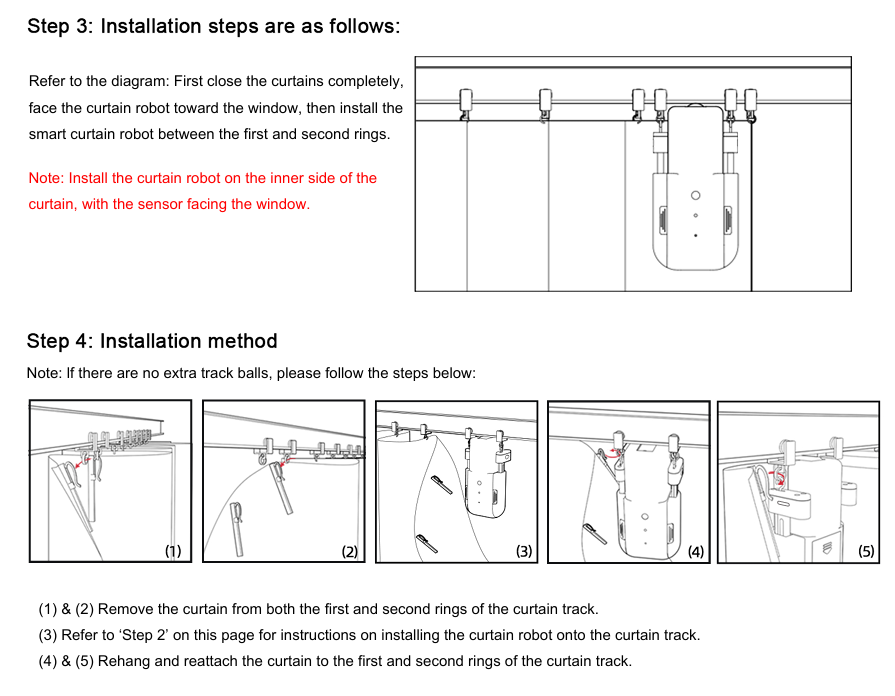
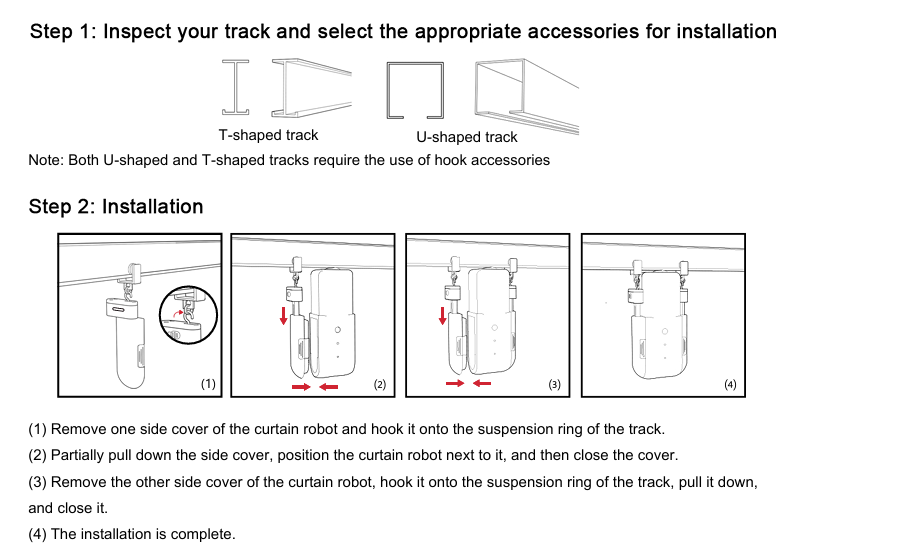
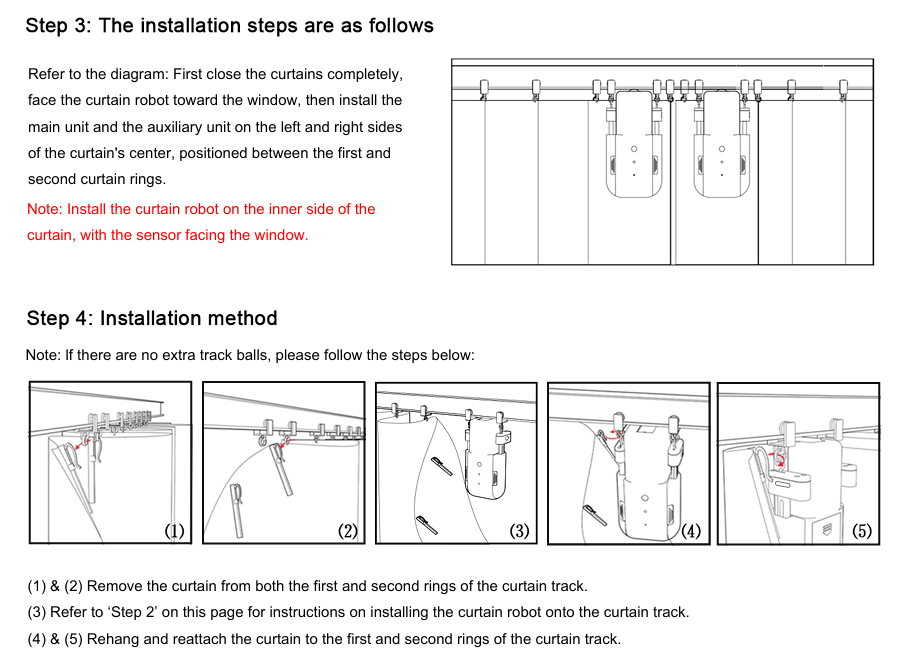
Product Installation
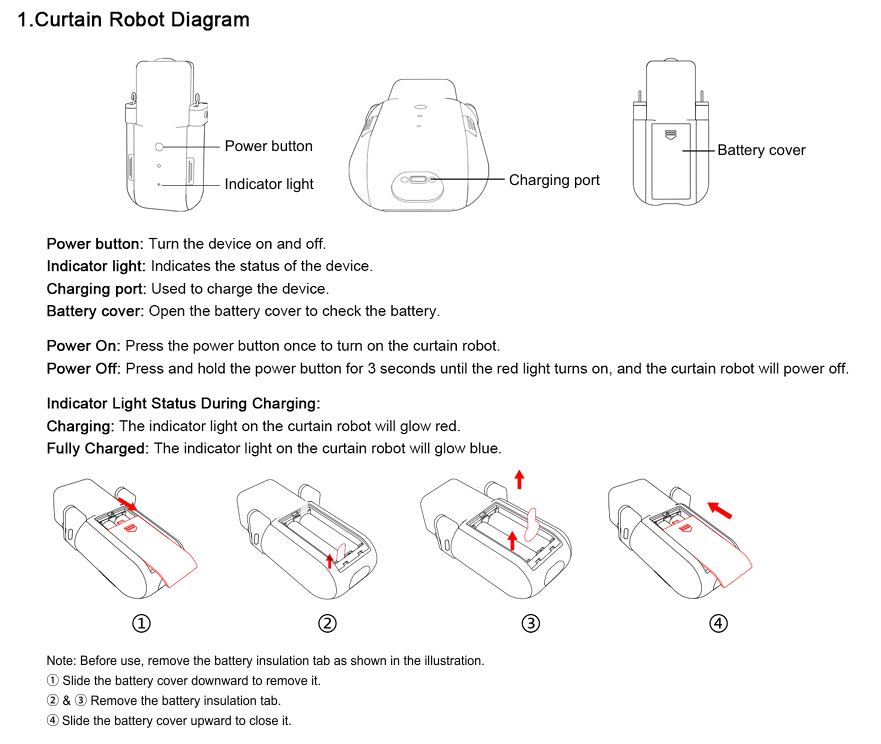
It is recommended to do a first full charge of 6-8 hours before using it, battery should typically last for 3 months for every charge, depending on individual user’s usage.
Recommended to use the charging cable provided in package, because some other type-c cable has a shorter charging head, which may not be fully inserted to the depth of the curtain robot, thus some user may experience device not charging when using their own cable.
Ensure phone is connected to 2.4ghz wifi only, ensure wifi password is accurate and product position is not too far from router
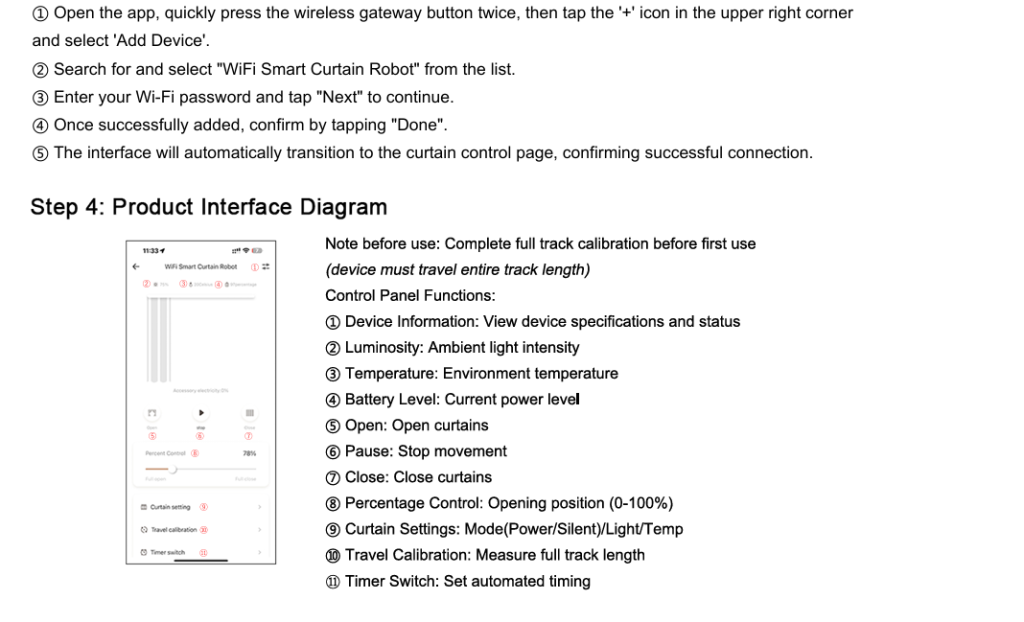
Curtain Robot is not moving but shows connected in the app
Ensure that curtain robot has its full charge, after which, follow the binding video above in this manual, robot may have been unbind from the gateway
Why is the robot connected to the app but not responding to controls?
The gateway is too far from the curtain robot (maximum 10 meters in open space; avoid obstructions like walls)
Accidental reset occured : 1) Long-press the robot’s power button for 5 seconds until the red light flashes to power it off 2) When the red lights turn off, press the power button once to turn it back on 3) After powering on, double-press the button to enter pairing mode 4) A beep will indicate successful pairing
Why does the app show 0% battery when fully charged?
After full charge, wait 5 minutes for the robot to update battery status to app
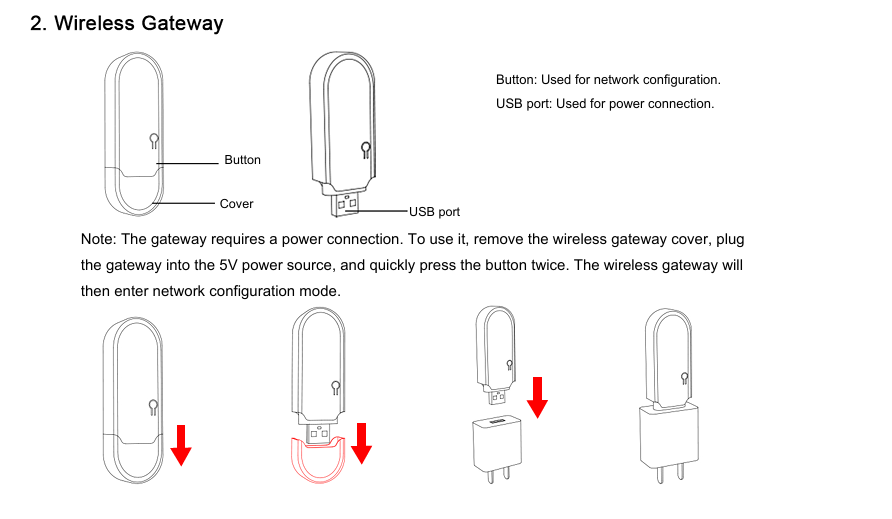
Why can't the app connect when the gateway is powered on?
Unplug the gateway
Reconnect power
Double-press gateway button to reset the network connection
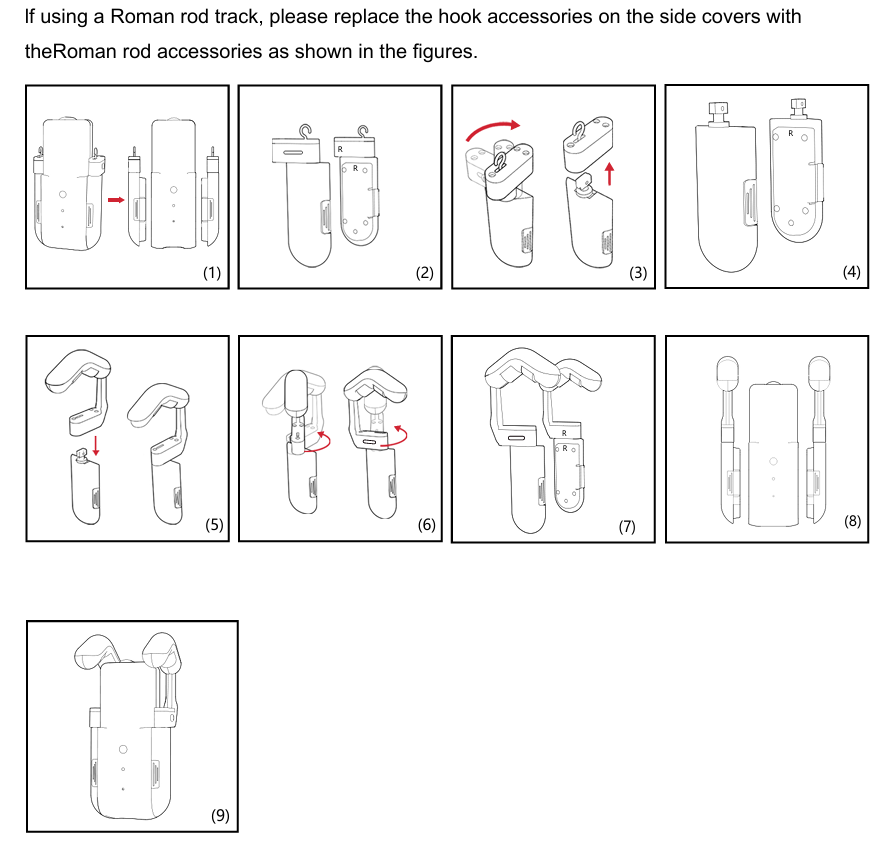
Why does the curtain robot fail to move smoothly on perforated Roman Rod curtains?
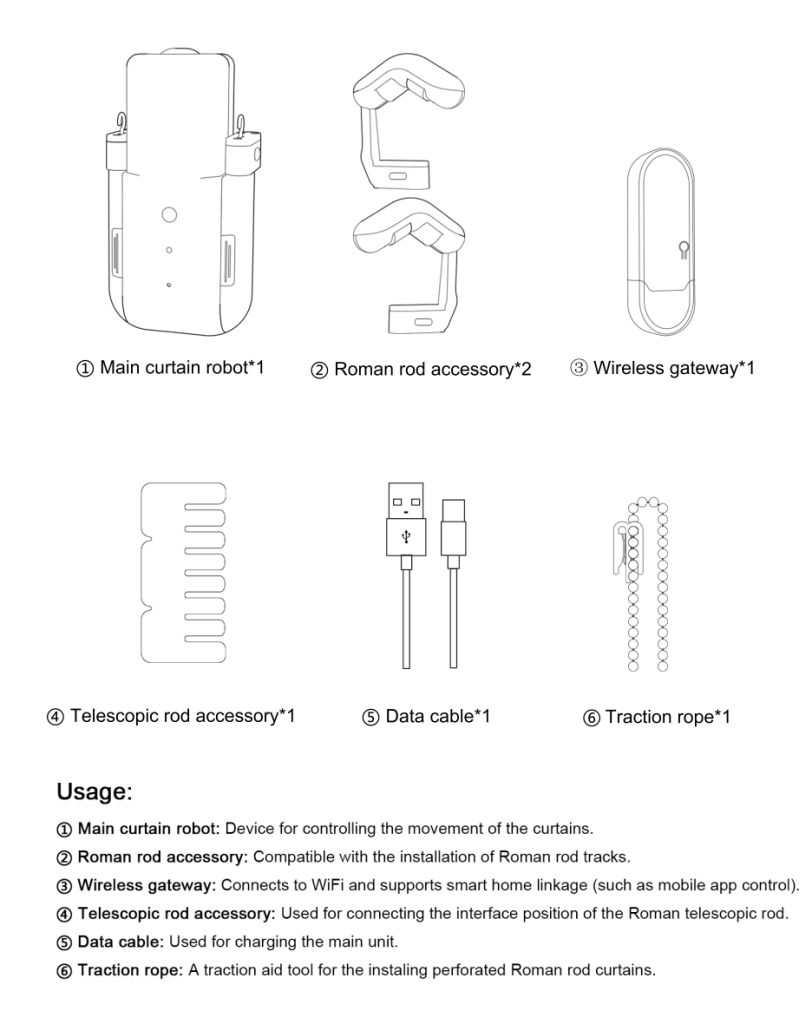
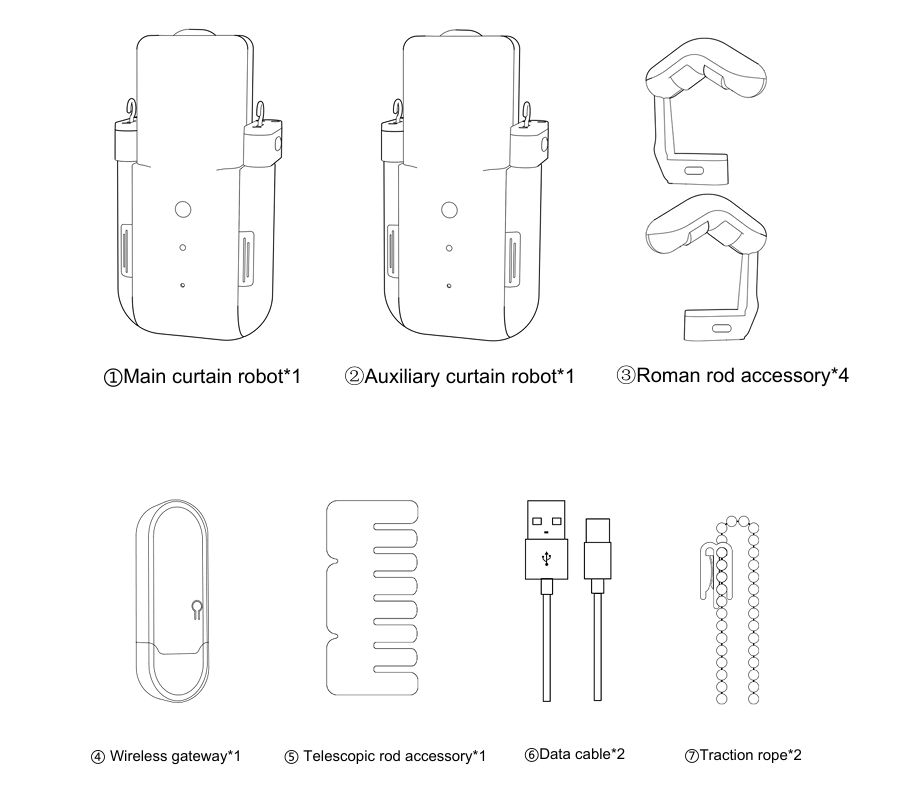
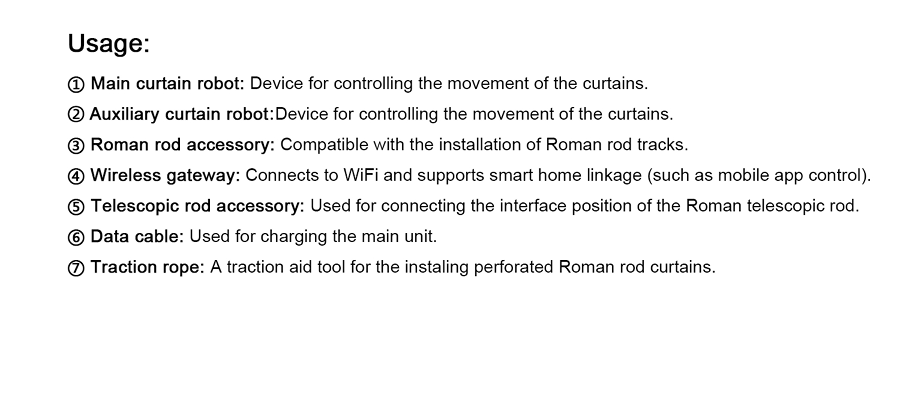
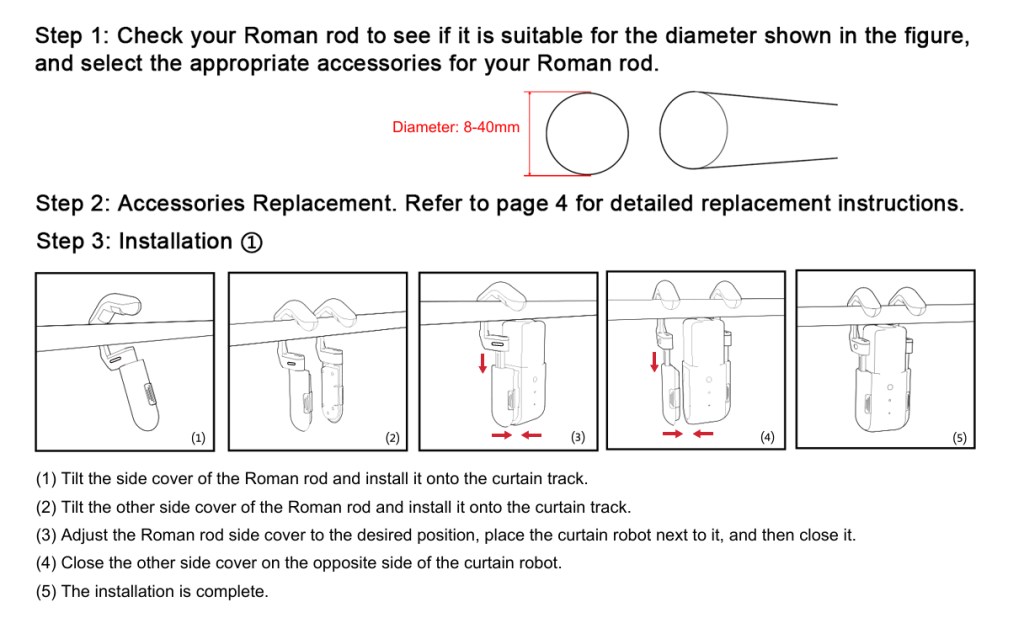
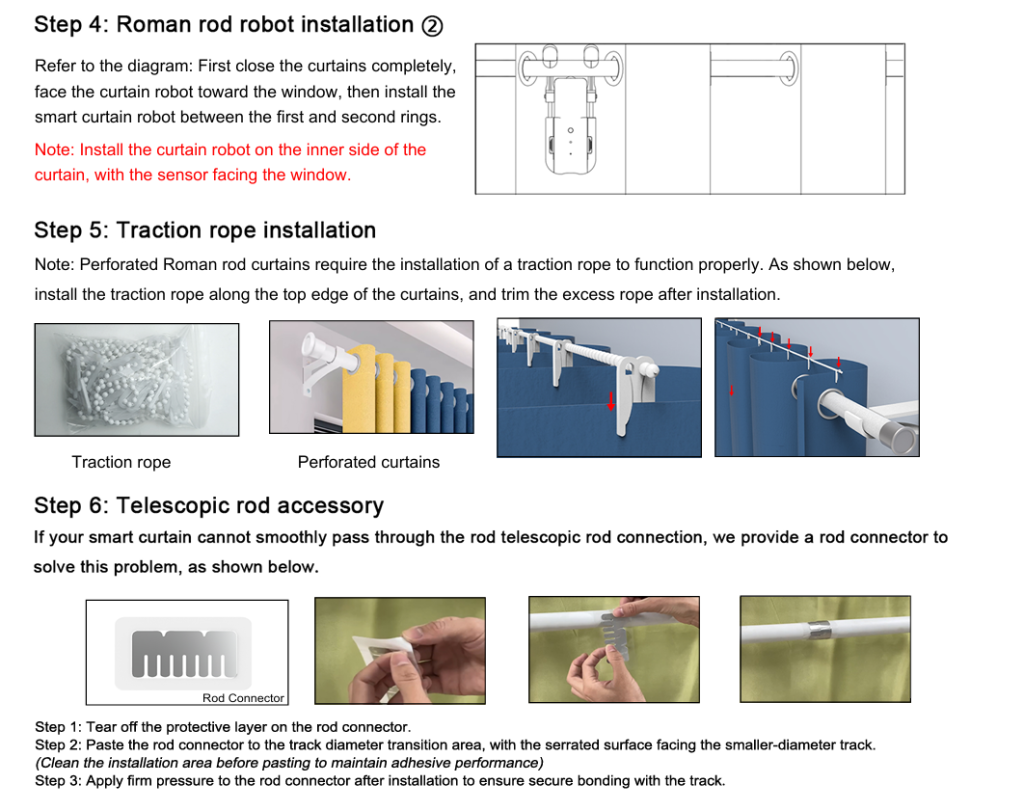
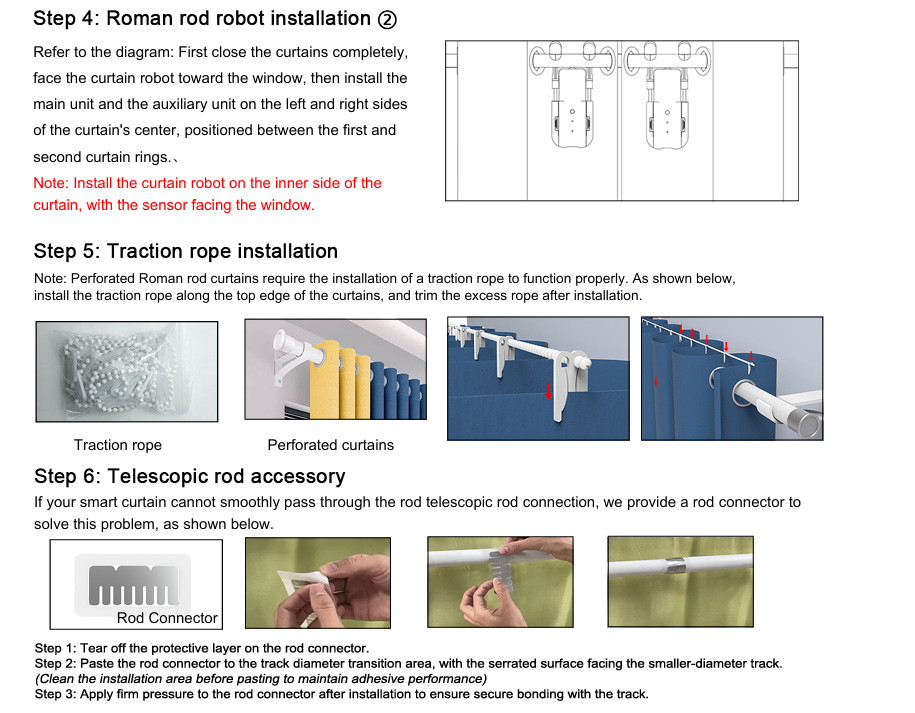
Traction rope verification : 1. Ensure the traction rope (included) is installed : Install it according to the instructions in the user manual 2. Clean the roman rod surface with a dry cloth (avoid liquid cleaners)
Why does the curtain robot fail to move at the telescoping section of Roman Rod track?
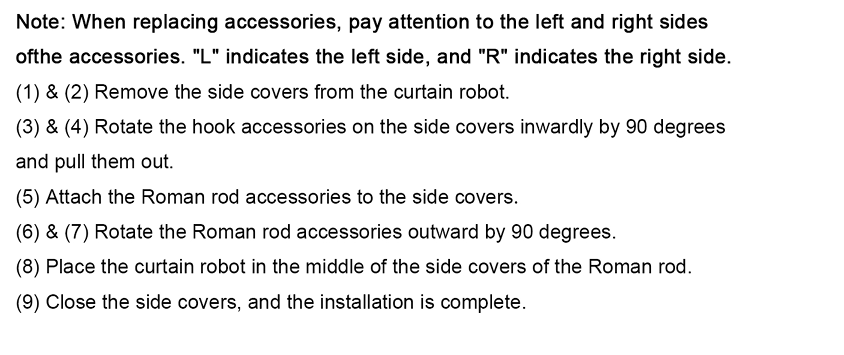
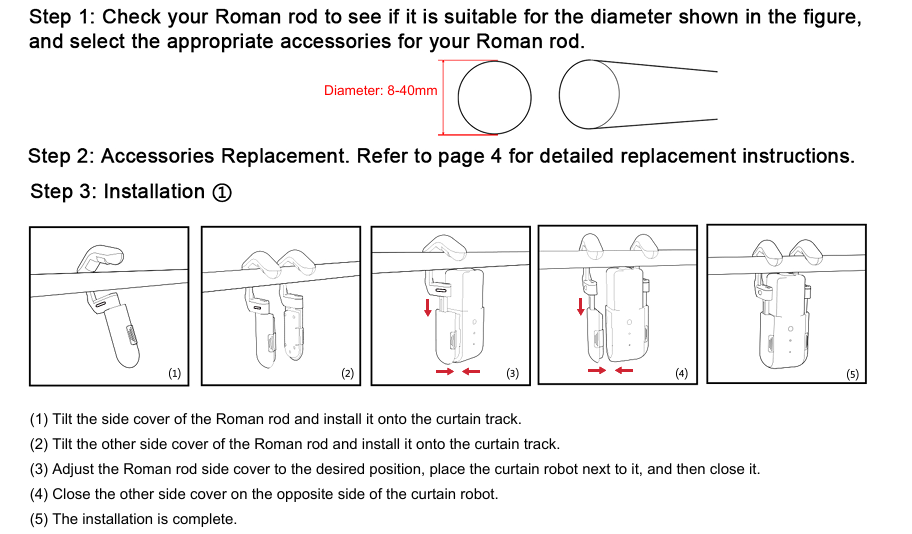
Accessory verification : 1) Check if the telescoping rod accessory is installed (required for adjustable rods) 2) Install it by following the accessory’s installation guide (steps vary by model)
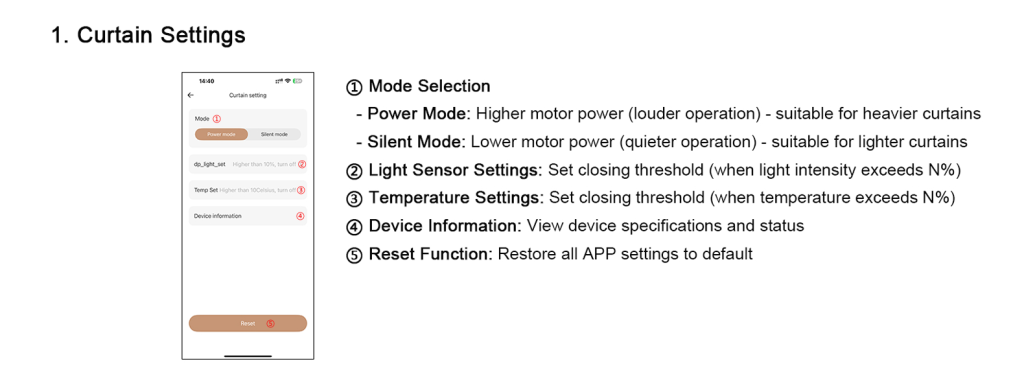
Why can't the curtain robot move curtains in silent mode?
Model selection : 1) Silent mode reduces power by 40% 2) For heavy curtains : switch to Power Mode (full torque available)
Why does the curtain robot operate in the reverse direction after being removed from the curtain for charging?
Orientation correction : 1) The robot is installed in the wrong direction 2) Swap its left / right position and reinstall
How to factory reset the device?
To reset to factory settings : 1. While powered on, press the main / auxiliary unit button 5 times consecutively. 2. Wait for three consecutive beeps and slow red blinking (reset mode activated) 3. Reset completes when red light turns off (unit will automatically power down)
How to pairing main unit & remote control?
Press once the main unit button to power on.
Press twice to enter pairing mode.
Long-press the OPEN button on the remote until the main unit emits a single beep (pairing confirmed)
How to pairing main unit & gateway pairing?
Press once the main unit button to power on.
Press twice to enter pairing mode.
With the gateway powered, long-press its button for 5 seconds until the red light turns on.
A confirmation beep from the main unit indicates success.
How to pairing main unit & auxiliary unit pairing?
Press once the main unit button to power on.
Press twice to enter pairing mode.
For the auxiliary unit (powered off), long-press for 8 seconds until the blue light blinks slowly.
Simultaneuos beep from both units indicate success.
Does pairing require the device to be close?
All pairing requires device within 10 meters without obstructions.