Digital Manual
Zigbee Blinds Motor

Zigbee Hub Required for Connection

Hub-1-768x768

App Installation​

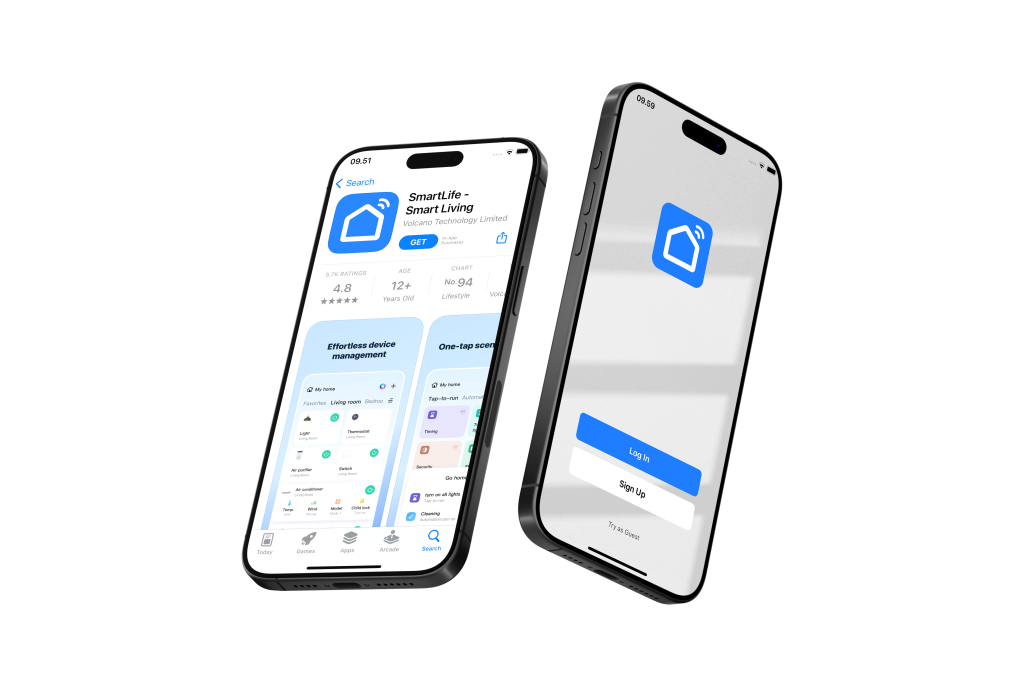
Manage and control all your smart devices conveniently in one app.

  • Download Smartlife App:
    • Visit the Google Play Store (for Android devices) or Apple App Store (for iOS devices)
    • Search for “Smartlife” and click the “Download” or “Get” button

  • Register Your Account:
    • Open the Smartlife app and follow the registration prompts
    • Create a new account to get started

  • Grant Necessary Permissions:
    • To ensure seamless connectivity, please grant the Smartlife app access to:
      • Notifications
      • Location
      • Wi-Fi
      • Bluetooth
  • Important Wi-Fi Configuration Note:
    Most smart home products, including this device, are compatible with Wi-Fi 2.4GHz networks only.
  • If you have a combined router:
    Please contact your telecom provider for assistance on how to disable Wi-Fi 5GHz to ensure proper connectivity.
  • Pre-Connection Checklist:
    Before adding your device, please ensure:
    ✓ Bluetooth is enabled on your mobile phone
    ✓ Wi-Fi is enabled on your mobile phone
    ✓ Your mobile phone is connected to your home Wi-Fi network (2.4GHz)
     

Product Introduction

Smart Blinds Motor
  • The smart blinds motor will not respond to any controls unless pairing is completed. This is because the motor needs to learn the limits and distance to operate effectively.

smart blind_1
Remote Controller 
  • The remote control will not function until the smart blinds motor is successfully connected to the app. This is because the motor needs to learn the limits and distance to operate effectively.
smart blind_3

Product Installation

Step 1: Ensure blinds motor has it full charge of 8 hours before proceeding to next step.


Step 2
: Remove blinds motor front top cover

Step 3: Use the suitable gear base on blinds beads/rope size, blinds motor will be unable to operate if wrong gear is used

Step 4: Hang blinds beads/rope on to gear

Step 5: Press blinds motor against the wall to push it down to ensure the blinds bead/rope is extremely tight !!  (very important step)

Step 6: Use a pencil to mark the installation placement of the back bracket

Step 7: Wipe down the installation area to ensure that wall has no dust and dirt before sticking on. This will ensure the stickiness of the 3M tape 

It is also recommended to press against the wall and leave the back plate on wall for 12 hours before letting the blinds motor sit on

Recommended to take this time to do a first charge for blinds motor before usage.

Reset Device

Step 1: Ensure blinds motor has it full charge of 8 hours before proceeding to next step.

Step 2: Mount the blinds motor onto the back bracket that is already installed on the wall.

Step 3: Look for the power button underneath the blinds motor, DOUBLE CLICK, blue indicator light will flash one time

Step 4:  Product is now reset and ready to be added to app

Ensure Outsmart Zigbee Hub is Connected Successfully

A Outsmart Zigbee hub is required in order to use Outsmart Zigbee products 

If user has more than 1 zigbee device, it is recommended to reset all together and let it enter pairing mode.

Zigbee hub will then locate all together at once.

Connect Device

  • Tap open Outsmart Zigbee Hub on home screen
  •  Tap Add New Devices
  • Ensure Zigbee Product are all in pairing mode
  • App will auto discover the product that are within range, otherwise, reset the product again
  • You are Connected!

Set Limit

Smart blinds motor is required to learn how much distance to pull each open and close

Step 1: Ensure blinds is in fully closed position before pressing any button, if you have already press anything prior, you will need to Reset Device again 

Step 2: Tap start to learn

Step 3: Once blinds reaches its fully opened position, tap on stop learning

Step 4: Done! Now you can control it from app, manual, and remote. Voice control is available for user with voice assistance 

Remember to tag us when you post them on social media!

The video below is Wifi Blinds Motor tutorial,
the only difference is Zigbee blinds motor doesn’t comes with gateway, and it required to double click during the pairing search