· Experience Outsmart in person ·
Book a showroom visit
· Experience Outsmart in person ·
Book a showroom visit

Digital Manual
Smart Hola Doorbell
App Installation
Manage and control all your smart devices conveniently in one app.


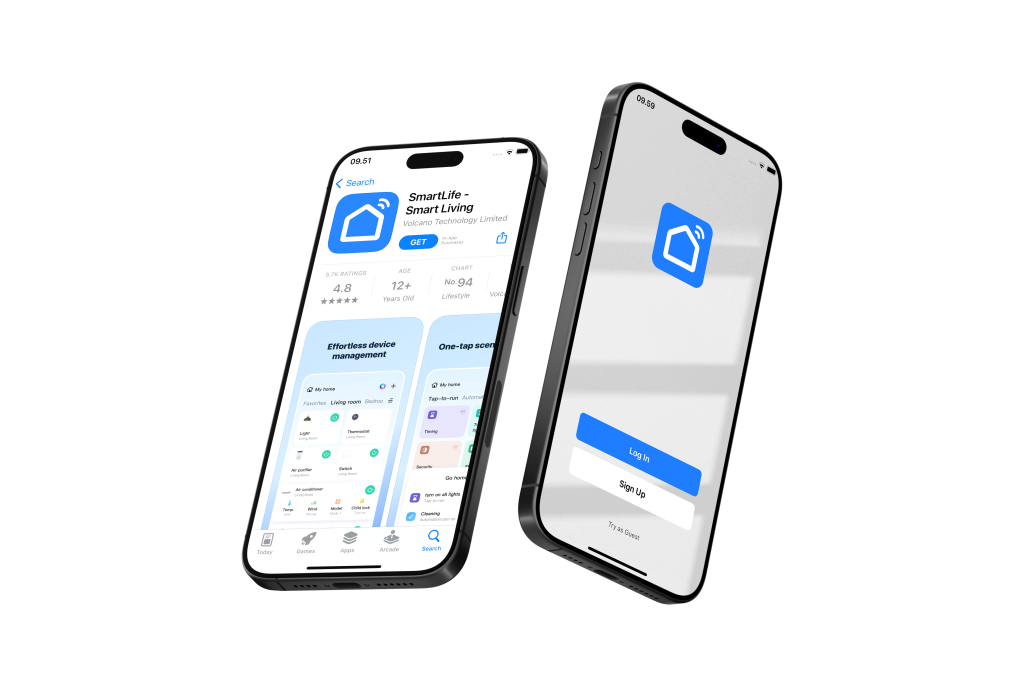
- Download Smartlife App:
- Visit the Google Play Store (for Android devices) or Apple App Store (for iOS devices)
Search for “Smartlife” and click the “Download” or “Get” button
- Register Your Account:
- Open the Smartlife app and follow the registration prompts
Create a new account to get started
- Grant Necessary Permissions:
- To ensure seamless connectivity, please grant the Smartlife app access to:
- Notifications
- Location
- Wi-Fi
- Bluetooth

- Important Wi-Fi Configuration Note:
Most smart home products, including this device, are compatible with Wi-Fi 2.4GHz networks only. - If you have a combined router:
Please contact your telecom provider for assistance on how to disable Wi-Fi 5GHz to ensure proper connectivity. - Pre-Connection Checklist:Before adding your device, please ensure:✓ Bluetooth is enabled on your mobile phone
✓ Wi-Fi is enabled on your mobile phone
✓ Your mobile phone is connected to your home Wi-Fi network (2.4GHz)
Activate Device
Long press the On/Off button located at the back of Hola Doorbell
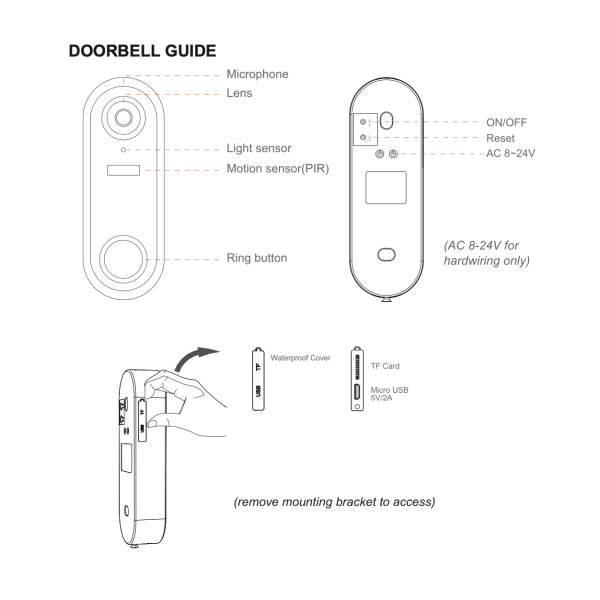
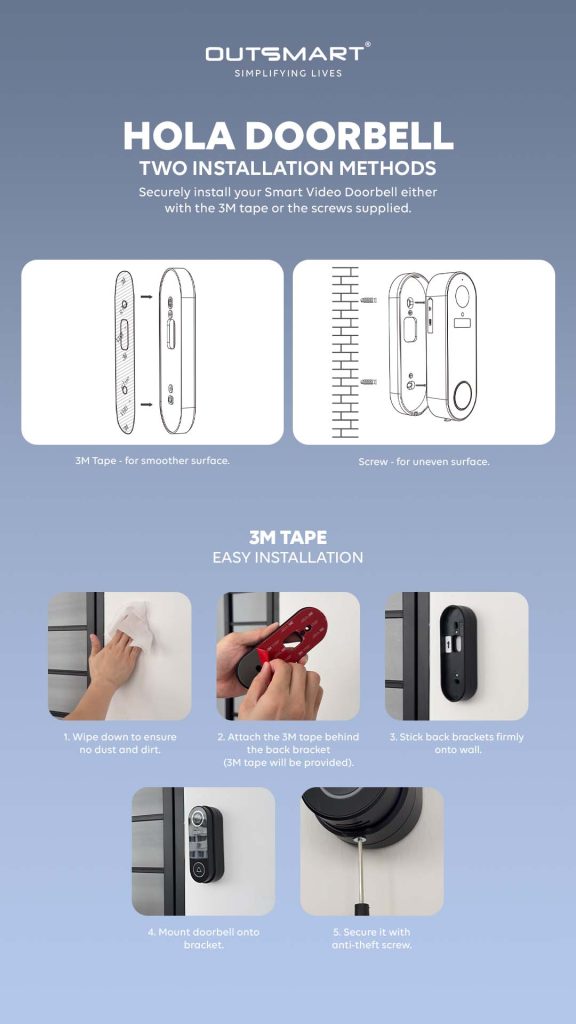
Device Installation
Device Pairing
Ensure doorbell button is blinking, otherwise long press the reset button at the back of doorbell then follow the steps below to scan the QR code for pairing

- Tap on the top right (+) button, then Add Device
- Select Camera and Lock Tab
- Select Smart Doorbell (Wi-Fi)

You will heard a prompt when scanning of QR code is successful then tap on ” I Heard a Prompt”
Now, you are all connected!
Paring of Chime
As well as activating your phone when pressed, the doorbell also comes with a plug-in chime for normal household alerts. The Melody button is on the left and Volume button on the right.
The doorbell and chime are connected via 443Hz frequency (not WiFi). After pairing, it is suggested to have them installed within 20ft of each other for best performance. Very thick walls may reduce the signal strength. If so, move them closer.
During the actual pairing process, it is recommended to have the doorbell next to the chime for ease.
Plug the chime into an active socket. It will ding and flash.
Press the Volume button repeatedly to choose your desired volume. There are 5 options including silent (flash only).
You can stick with the default tone (skip to step 4), or press the Melody button repeatedly to hear all 52 options.
On the tone you want, press and hold the Volume button until the light stays blue.
Within 5 seconds, press the ring button on the doorbell.
The units should now be paired.
You can adjust the volume at any time without re-paring. Any change in melody will not take effect unless you re-pair.
If you move the location of the chime, test the connection in the new location and re-pair if necessary.
Important Seting
- Tap open camera setting on the top right corner of the screen
- Select the preferred motion detection sensitivity. Note that the higher the sensitivity, the faster the battery depletes; Low/Medium is usually suitable for most homes. Test what works for you.
- Turn human body filtering ON in Detection Alarm Settings to only detect humans; this minimises false alerts from animals, vehicles etc., which reduces notifications and battery usage.
- Turn activity area ON in Detection Alarm Settings to enable you to adjust the area your PIR detection is active via the surveillance area setting section. The area outside of your red grid will not be detected.
- Set a low battery level in Power Management Settings. This will send a notification reminding you to charge.
- Turn Offline Notification ON. This sends a notification if the doorbell loses signal for more than 30 minutes.


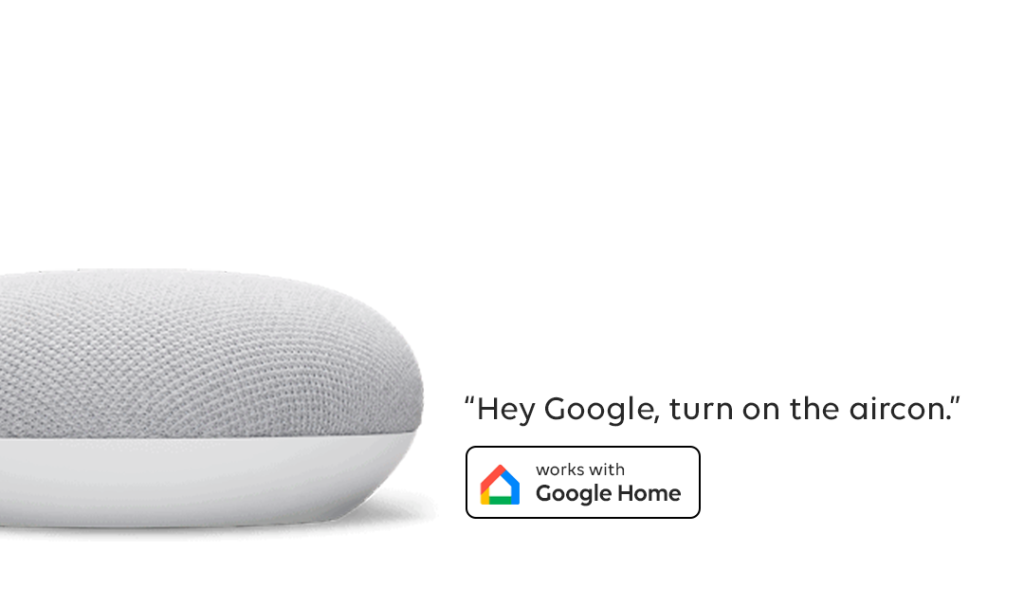
Voice Assistance
tap on image below for video tutorial


FAQ
Ensure phone is connected to 2.4ghz wifi only, ensure wifi password is accurate and product position is not too far from router
Ensure you have removed the protective film that is on the lens, screen brightness to be 100% and hold still the camera around 15cm distance away from the screen.