Manage and control all your smart devices conveniently in one app.
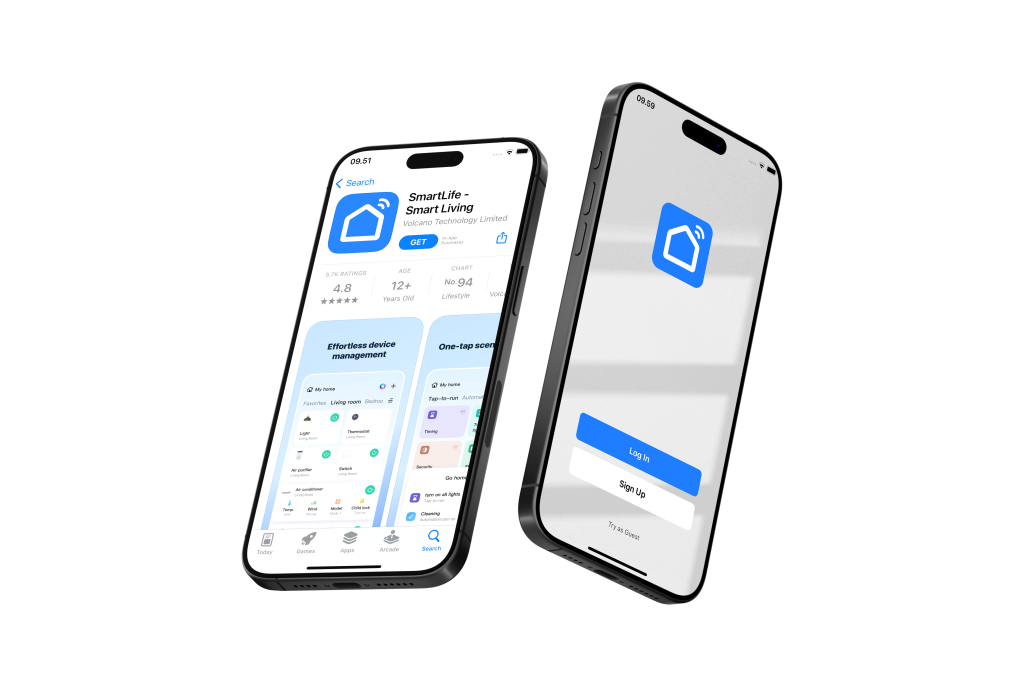
Download Smartlife App:
Visit the Google Play Store (for Android devices) or Apple App Store (for iOS devices)
Search for “Smartlife” and click the “Download” or “Get” button
Register Your Account:
Open the Smartlife app and follow the registration prompts
Create a new account to get started
Grant Necessary Permissions:
To ensure seamless connectivity, please grant the Smartlife app access to:
Notifications
Location
Wi-Fi
Bluetooth
Important Wi-Fi Configuration Note: Most smart home products, including this device, are compatible with Wi-Fi 2.4GHz networks only.
If you have a combined router: Please contact your telecom provider for assistance on how to disable Wi-Fi 5GHz to ensure proper connectivity.
Pre-Connection Checklist:
Before adding your device, please ensure:
✓ Bluetooth is enabled on your mobile phone ✓ Wi-Fi is enabled on your mobile phone ✓ Your mobile phone is connected to your home Wi-Fi network (2.4GHz)
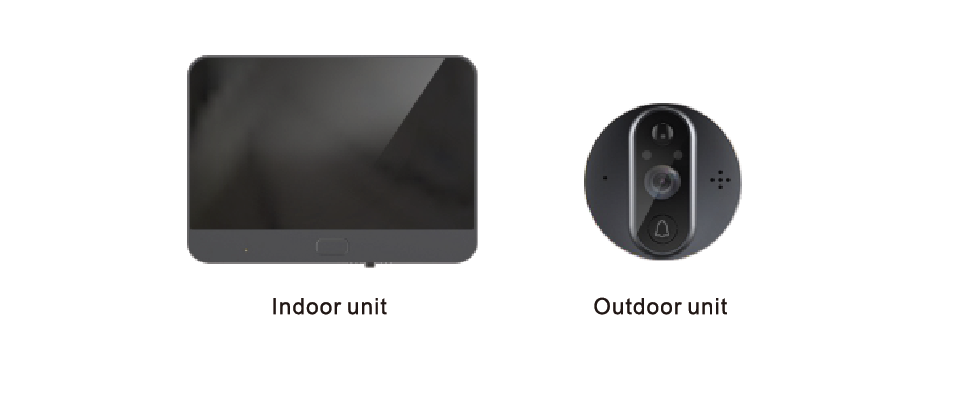
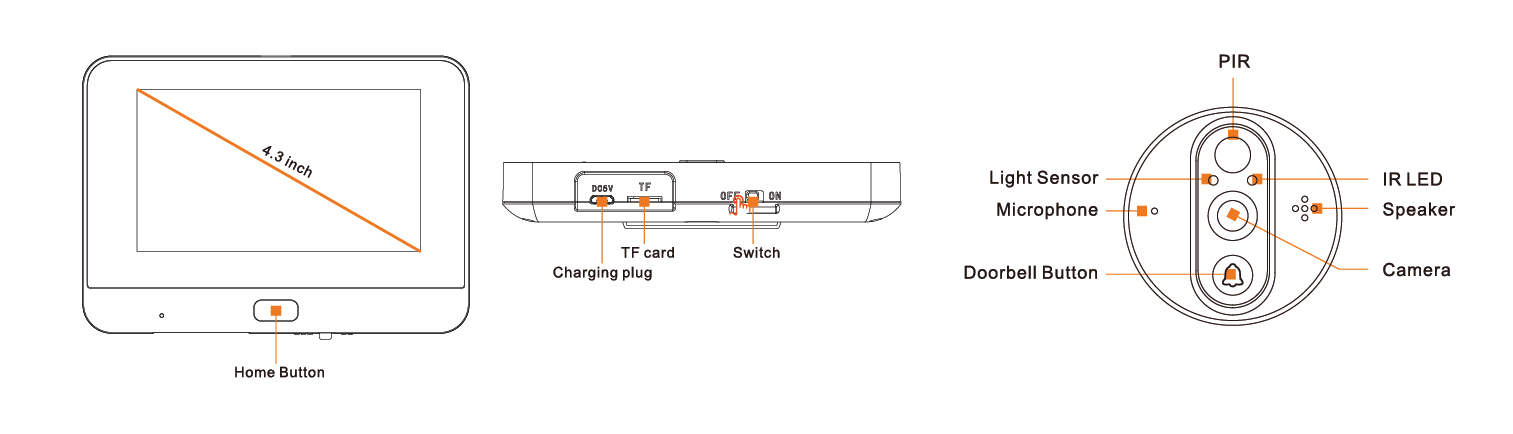
Product Introduction
Product Set Up
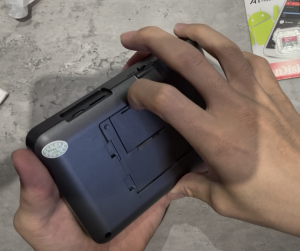
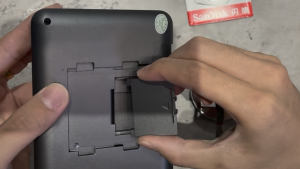
Open up indoor unit back plate cover
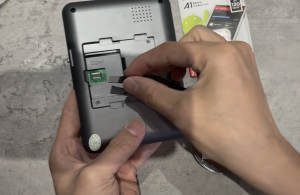
Cover can be fully removed
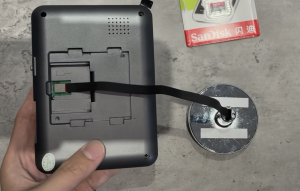
Plug in the cable
Ensure the cable is plugged in from this direction (as per photo)
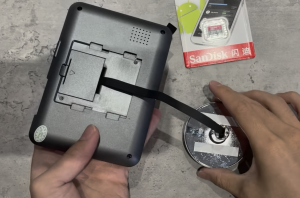
Put the cover back
After cable is plugged in to the indoor unit, switch on the power button from the bottom of the indoor unit and you will hear a prompt
Connect Device
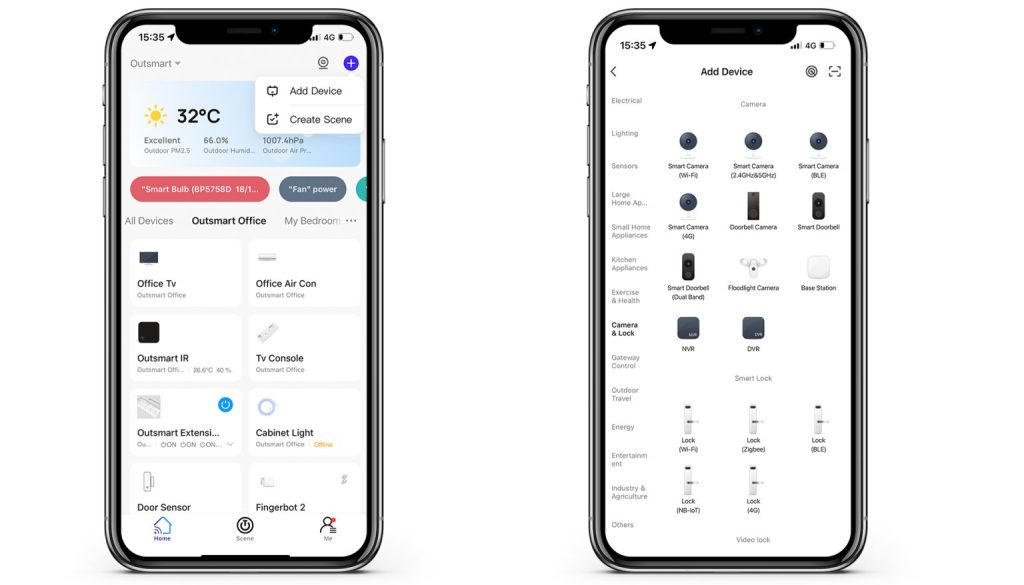
Tap on the top right (+) button, then Add Device
Select Camera and Lock Tab
Select Smart Doorbell
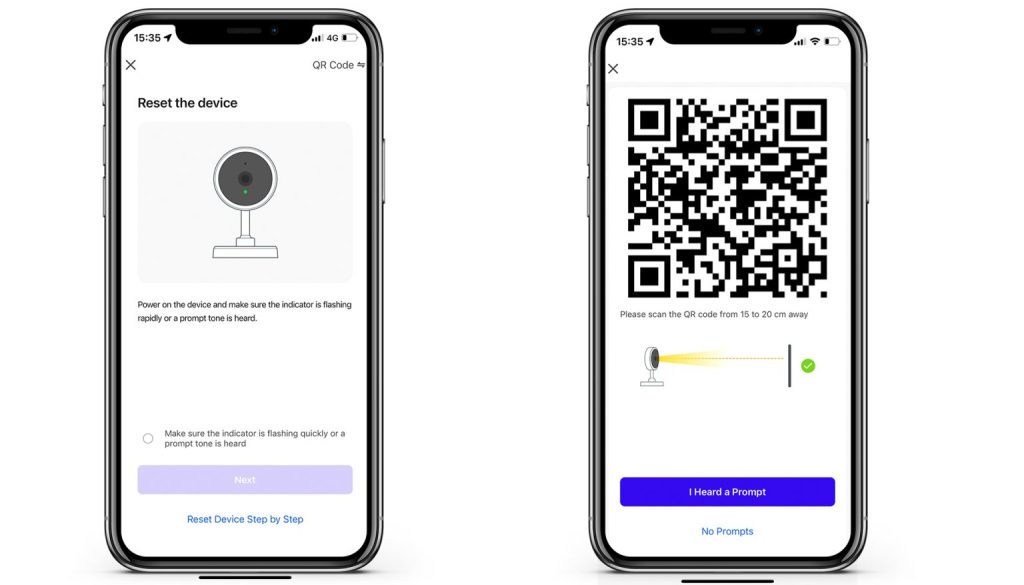
Ensure indicator light on indoor unit is flashing, then tap next
Use outdoor unit to scan the QR code that is on Outsmart app screen
Tap “I heard a prompt” when scanning is successful
Important Setting
Once Doorbell is connected, tap on the top right setting button:
Tap Basic Function Setting, enable two ways communication
Tap working mode, enable power saving
Tap Detection Alarm, enable Human Body Filtering
Tap PIR (motion detection) , set it to low for battery saving
Turn on offline notification
Tap share device, if you would like to share it with other family members
how to activate
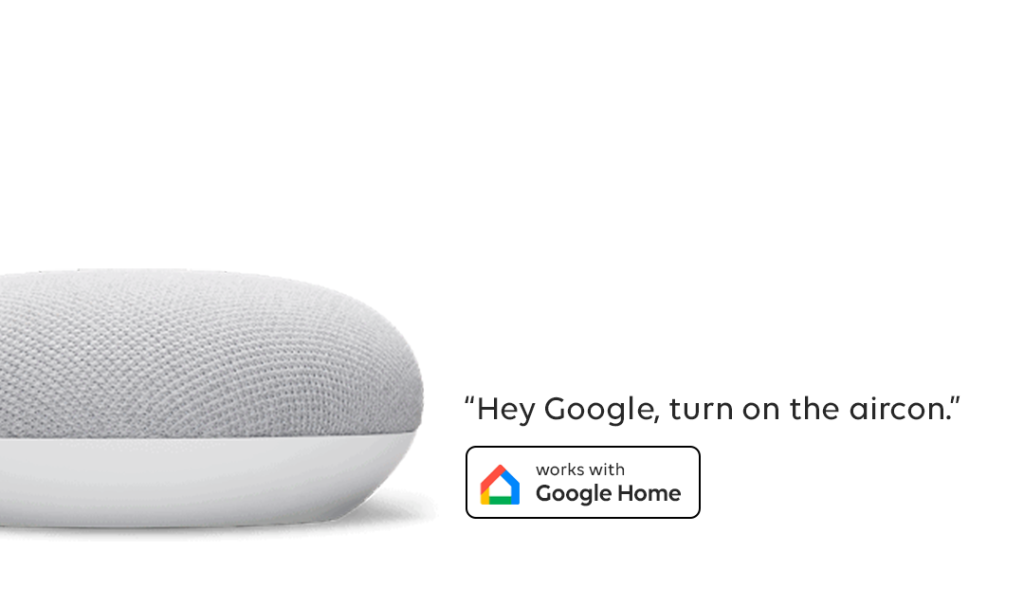
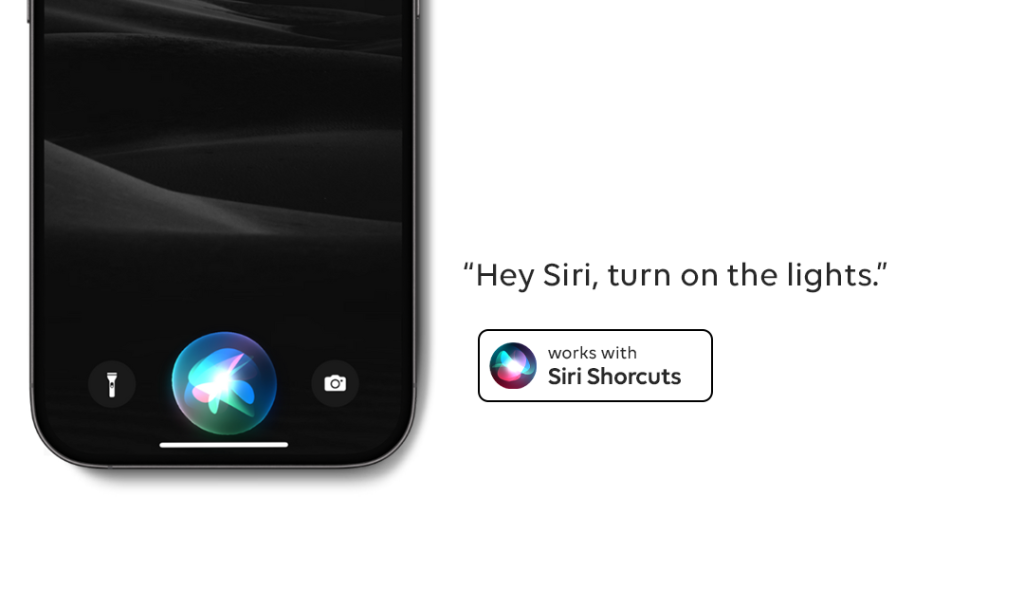
Voice Assistance
tap on image below for video tutorial
How to Install Door Viewer
Remember to tag us when you post them on social media!