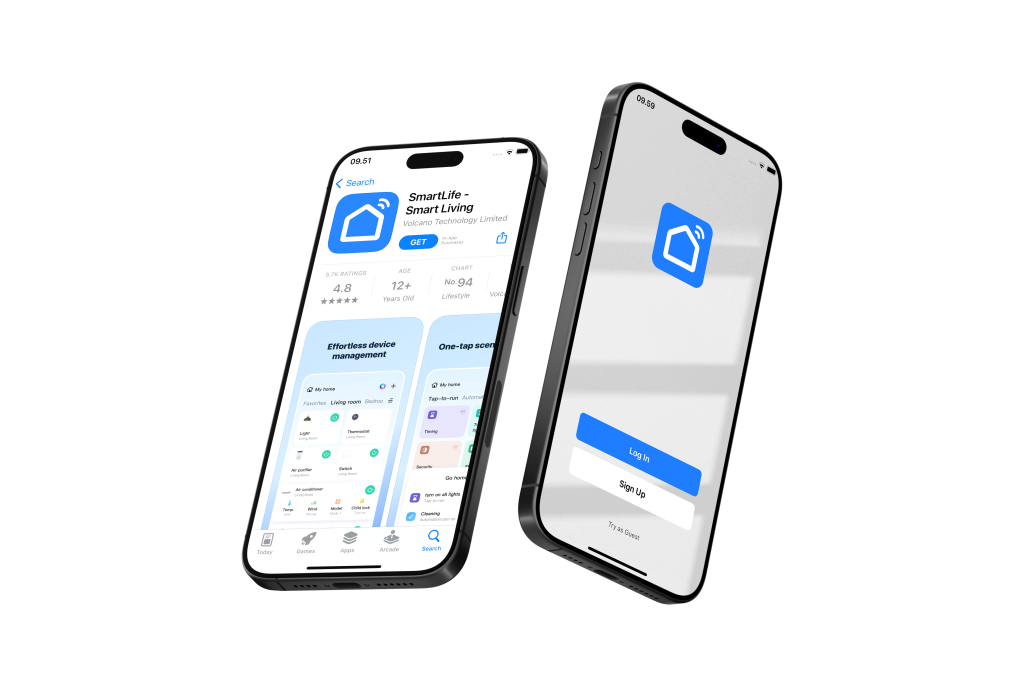
Manage and control all your smart devices conveniently in one app.
Download Smartlife App:
Visit the Google Play Store (for Android devices) or Apple App Store (for iOS devices)
Search for “Smartlife” and click the “Download” or “Get” button
Register Your Account:
Open the Smartlife app and follow the registration prompts
Create a new account to get started
Grant Necessary Permissions:
To ensure seamless connectivity, please grant the Smartlife app access to:
Notifications
Location
Wi-Fi
Bluetooth
Important Wi-Fi Configuration Note: Most smart home products, including this device, are compatible with Wi-Fi 2.4GHz networks only.
If you have a combined router: Please contact your telecom provider for assistance on how to disable Wi-Fi 5GHz to ensure proper connectivity.
Pre-Connection Checklist:
Before adding your device, please ensure:
✓ Bluetooth is enabled on your mobile phone ✓ Wi-Fi is enabled on your mobile phone ✓ Your mobile phone is connected to your home Wi-Fi network (2.4GHz)
RESET DEVICE
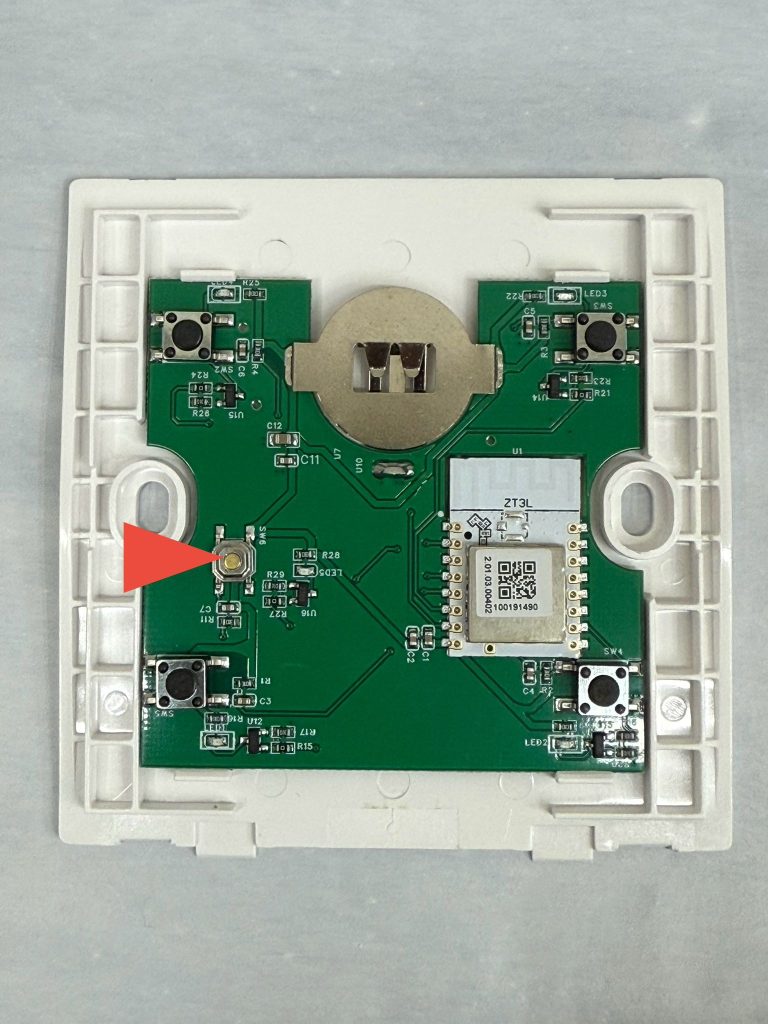
LONG PRESS RESET BUTTON FOR 10 SECONDS
The device indicator light will flash rapidly to indicate pairing mode. Open the connected Zigbee Hub and tap “Add New Device.
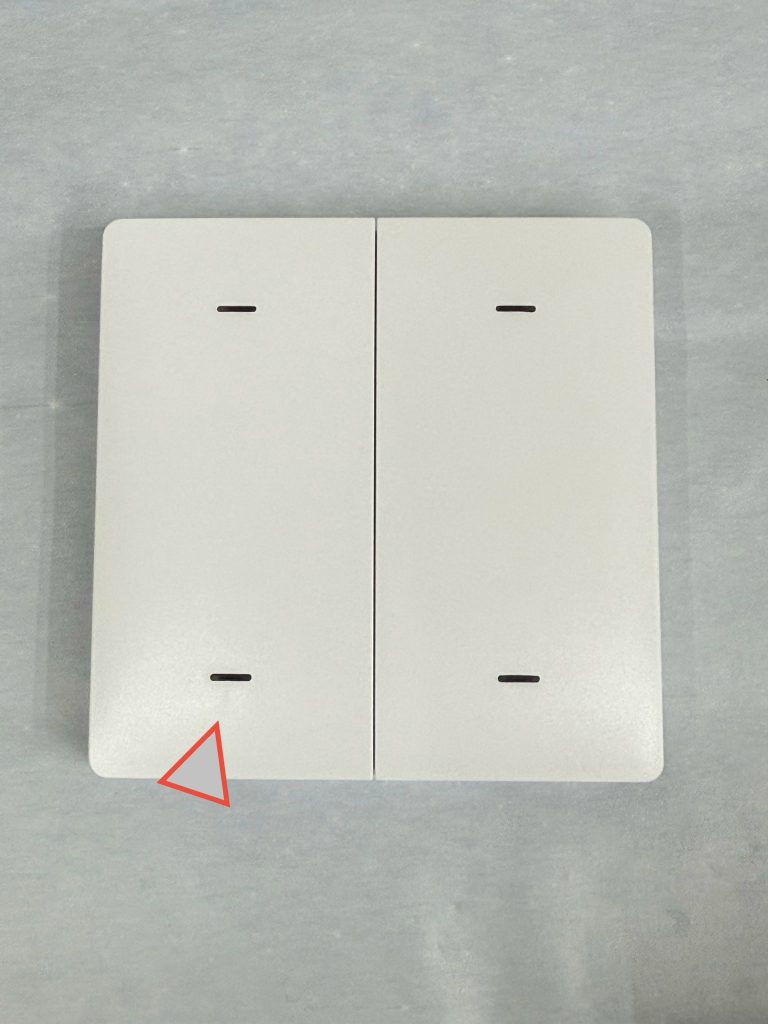
Depending on the version of the scene switch, each has different ways of resetting, refer to the image below to see if the scene switch has button on the circuit board. Otherwise press any of the 4 buttons to reset it
Remember to tag us when you post them on social media!